 Figure 0.a |  | |
Figure 0.b -> |
The steps below show how any 'user accessible data' (of 1 byte to about 1 Gigabyte[1]), can be saved to a binary file using the HxD hex/disk editor. Save a disk's MBR (Master Boot Record) or Volume Boot Sector, or copy many sectors (such as the first 100 or 2100). Data can be saved from an HDD (spinning hard disk drive), SSD (Solid State Drive - no moving parts), removable diskettes in a 'floppy drive', USB drives[2], a CD or DVD in an 'Optical drive'[3] or even from a PC's Memory.
Please Note: Unlike the Windows® XP OS, if you run HxD under Windows Vista, 7, 8 or later, you will need to explicitly grant it administrator privileges in order to even read data from a drive! So you must start the program as follows: 1) Right-click on "HxD.exe" or its Desktop icon, then choose "Run as administrator" 2) When asked to allow HxD to make changes; even though you will only read data from a drive, you must click on "Yes" in order to access your disk drives. Note: For reading and writing files from/to a logical drive (i.e., when using HxD as a simple file editor), you do not need to do either of these!
Figure 0.a | | |
Figure 0.b -> |
Note: If you like Keyboard Shortcuts, pressing an 'ALT' key will underline the shortcut keys in the menus.
How to Save Data from Storage Media to Binary Files
1. Open HxD's "Extras" menu and select "Open disk..." to access disks connected to your PC. (Note: clicking on the 'Open disk icon' circled in BLUE in Figure 1a below will do the same thing.) If you have many disks or partitions, it will take some time for HxD to access and examine them. An 'Open disk' window will eventually appear. You can choose either a "Logical" drives (Windows assigns 'letters' to logical drives) or "Physical disks" to open.
NOTE: For this exercise, choose 'Hard Disk 1' as shown here, making sure the "Open as Readonly" box is checked (so you will not accidentally write to your drive):
 Figure 1.a Use your mouse, or 'ALT + X' on keyboard to choose a Logical or Physical disk to open. Physical disk types begin with digit '1'. |  |
2. HxD will always open at 'Sector 0' of a disk drive; here we see the beginning of an MBR sector on a 750 GB hard disk:
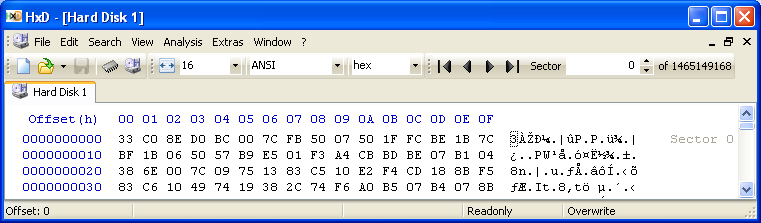
Learning some basic controls. We encourage you to take some time observing what happens when you do the following:
a) With your 'mouse cursor' at the left or in the middle of the first byte, press and hold down its left button while you drag the cursor towards the bottom for just a few lines. You should immediately see all the bytes become 'highlighted'. Release the button and they will remain that way. This is one way to 'select' bytes. You should also notice two new items have appeared in the 'Status Bar' (at the bottom of HxD's window): "Block:" will show the starting and ending offsets of the selected bytes, and "Length:" will show the total number of bytes selected. Note: Changing the 'Offset base' setting from 'hex' to 'dec' will show the 'Length' and all 'offsets' in decimal. Use the selection here (in BLUE circle):

b) Now, while holding down a 'SHIFT' key, press the 'Down Arrow' key once, then release both keys. You should see an additional row of bytes
become highlighted. Use the SHIFT key again, but press the 'Page Down' key one time; release both. When holding down the SHIFT key, if you left-click with
the 'mouse cursor' somewhere beyond a highlighted Block, all the bytes in between will be added to the selection, but clicking somewhere inside that Block
of selected bytes will un-select those bytes; making where you clicked the new end of the selected bytes Block.
c) If you press any Arrow or Page keys without holding down a SHIFT key, the highlighting will disappear as will the 'Block' and 'Length'
items from the Status Bar. Left-clicking the 'mouse' (without holding down the SHIFT key) will have the same effect.
d) Watch the "Sector" numbers change while holding down the 'Page Down' key. In just 5 seconds, you'll probably scroll through more than
200 sectors. (Note: When you are selecting bytes, the Sector number will not change; it will remain fixed at the sector your selection began at, but both
the "Block:" and "Length:" values will change as fast as the selected bytes do.) To get back to the first sector, you can do
one of the following:
1) | Press the 'Control' + 'Home' keys (or 'ALT' + 'Home' keys) at the same time; using 'Control' + 'End' keys will go to the very last byte of the whole drive! (The 'ALT' + 'End' keys will jump to the first byte of the very last Sector of the drive!) or |
2) | Type '0' into the 'Sector' box and press the 'ENTER' key or |
3) | Click on the |
3. Use 2. d) 1), 2) or 3) to be sure you're at 'Sector 0'. [No matter what kind of Windows or Linux OS boots-up from a disk drive, there should always be some kind of code and data in its first sector. And whether it's a 'Basic' or 'Dynamic' drive, or even GPT partitioned, the Partition Table should always have at least one entry to keep any MBR utility from 'thinking' the disk has not been partitioned!]
4. SELECT the bytes to copy: In step 2, you learned how to select bytes by dragging a 'mouse cursor' across them, but for a large number of sectors, it's best to use the "Select block..." window (in Figure 3 below) by simply pressing the "Control + E" keys to pop it up, or choose it from the "Edit" menu.
 | Figure 3. To Select the First
100 or 2100 Sectors of a Drive In this pop-up window, make sure to: |
5. To COPY the 'Selected' bytes, you only need to do one of the following:
a) Press the "Control + C"
keys, or
b) Click on the "Edit" menu and choose "Copy", or
c) Put 'mouse cursor' somewhere in the
'Selected bytes' area, then 'Right-click' and choose "Copy" from the pop-up menu.
6. To SAVE the copied bytes to a binary file, do the following:
a) Press the 'Control + N' keys (or click on the "File" menu and choose "New") to
start a new temporary file!
b) Use either the 'Control + B' or 'Control + V' keys (it makes no difference if you use "Paste write" or
"Paste insert") to copy data into a new ('Untitled') empty TAB. (Or, select either one from the "Edit" menu).
c) Click the "OK" button in 'Confirm' pop-up window to proceed (to insert/write data). The new data will be colored
RED to indicate that it has not yet been SAVED to a file.
d) Press the 'ALT + F + A' keys (or click on the "File" menu and choose "Save as...").
In the pop-up window, navigate to a folder such as "My Documents" or another easy to remember folder, type in a "File name"
(we suggest: 1HDD100S.BIN for the first disk drive's first 100 Sectors; 2DD2100S.BIN, for second disk drive's first 2100 Sectors, etc.).
e) Click the "Save" button, and the TAB Title should change to the File Name you entered and the RED
data change to BLACK; both indicating the file has been saved.
7. Right-click on the TAB and close it. Check that the file was saved correctly to the folder you chose.
Footnotes
1[Return to Text] The amount of data that can be copied depends on how much free Memory is available. Even the commercial hex/disk editor, WinHex, has this limitation when attempting to copy data from one large file into another. If a PC is running a 32-bit OS and with 4 GiB of Memory installed, the amount of data that can be copied will probably be limited to roughly 1.5 GiB; assuming no other programs are running; it will also be less, depending upon whether any memory is used for an 'onboard video adapter' or other device(s). (Note: Although we have 4 GB of Memory installed; and we could have up to 8 GB, the Computer 'Properties' under our 32-bit Windows XP Pro OS shows it cannot access more than "3.24 GB of RAM".) So a limit of 1 Gigabyte seems a fair approximation for a 32-bit OS. For a 64-bit OS; especially if the PC has 6, 8 or even more GiB of Memory installed, this limitation will increase accordingly. WinHex and imaging programs, such as FTK Imager, use different methods when saving a whole disk drive (of hundreds of Gigabytes or a few Terabytes) to an image file!
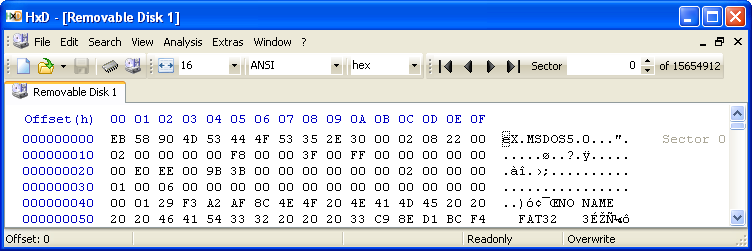
2[Return to Text] USB (or 'Removable') drives are most often formatted as a single Volume, the first sector of the drive being its Volume Boot Sector; so no MBR sector (or partition table) exists on such a drive. This is also true for floppy diskettes. Microsoft® Windows™ generally does not allow removable drives to be partitioned. However, there are utilities available for partitioning USB drives, so it is possible to find an MBR sector and partition(s) on a removable drive. Of course, if you're using an IDE(or SATA)-to-USB Adapter with a disk drive, the drive may have already been partitioned. Figure 4 shows the beginning of a FAT32 formatted 8 GB USB drive:
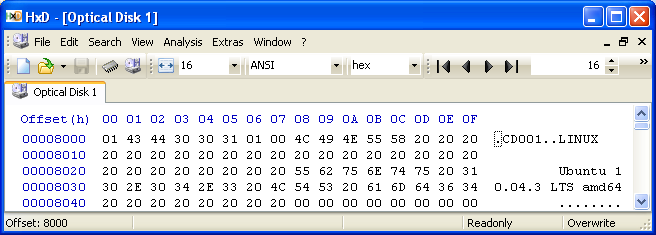
3[Return to Text] CD and DVD media usually have sectors of 2048 bytes each, with no readable data in the first 16 sectors.
Figure 5 shows 'Sector 16' (the 17th sector) of an install CD for the Ubuntu Linux 10.04 LTS (64-bit) OS:
This copy was created on March 27, 2016 (2016.03.27) by Daniel B. Sedory for Maël Hörz.
 icon just to the right of the 'hex'/'dec' select
box. (Clicking on the
icon just to the right of the 'hex'/'dec' select
box. (Clicking on the  icon next to the 'Sector' box, will jump to the first byte of the last sector of the whole
drive.)
icon next to the 'Sector' box, will jump to the first byte of the last sector of the whole
drive.)